
Verify that your GTM makes the correct call
-
Go on your Kelkoo Group Merchant Extranet and log into your account then click on the link View your Kelkoo store page in the top right corner of the Home page
-
Click on one of your offers to be redirected to your website
-
Open "developer console" (usually F12, otherwise right-click on page and "inspect element"), then open "network" tab.
-
Check if you have a /gtm call:
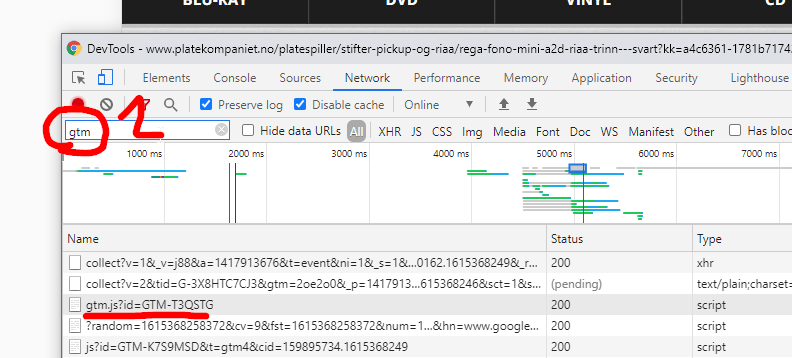
-
Open /gtm call content (usually right-click on call then "open in new tab")
-
Check if you find leadtag value in the page
-
Check if you find kkstrack value and check that merchantId/country are ok.
Common issues with GTM integration
Common Issue 1: Integration has not been published
-
Ensure that you have published the integration.
Common Issue 2: orderId/orderValue fields are undefined when firing Kelkoo Group tag
-
Verify that you have removed all existing Kelkoo Group tag
-
Re-install from scratch the tag using our brand new GTM template, available here: https://www.kelkoogroup.com/support/merchants-support/google-tag-manager-integration/
-
Make sure that variables used for orderId/orderValue fields in template are the good ones: It can be checked in GTM debug mode when doing a fake sale: variables must not be undefined when firing Kelkoo Group tag
-
If your variables are undefined it might be because you use Google conversion tag variables, and these variables are pushed in the datalayer below the GTM snippet in confirmation page (see below for more details)
-
If the variables are declared after the GTM, then the Firing Trigger must be a Page View - DOM ready trigger instead of All Pages Page View (see below for more details)
Common Issue 3: datalayer and GTM are not called in the correct order
-
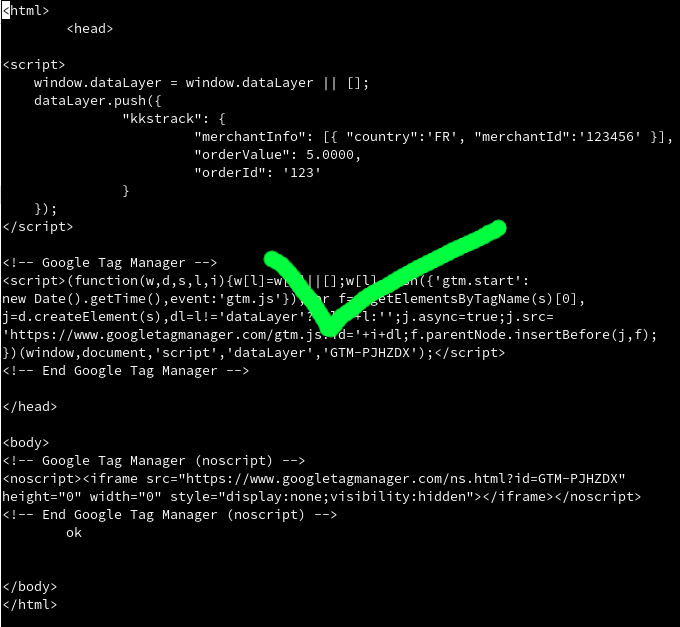
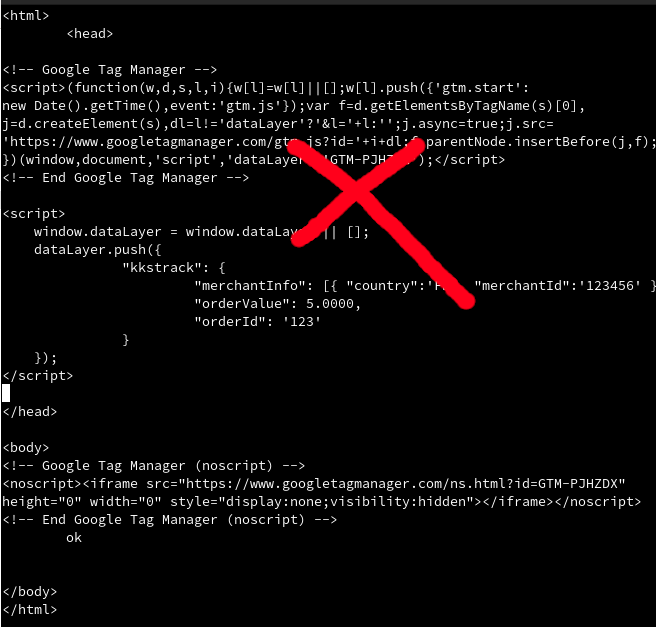
If you manually fill the GTM datalayer with the kkstrack script in the source code of the page, integration order is important
-
Make sure the datalayer is above the GTM snippet.
Correct datalayer/GTM snippet integration order:
Incorrect datalayer/GTM snippet integration order:
Common Issue 4: Kelkoo Group Tag not triggered on DOM ready event
-
The Kelkoo Group tag must be triggered on DOM ready event, not custom event, to be sure variables are available.
-
This has to be checked when you notice that you constantly move back and forth from Kelkoo Sales Tracking V1 to V2 (visible in your Merchant Extranet).
Common Issue 5: missing or wrong double quotes to declare variable name
-
In Google Tag Manager, for a variable to be interpreted it must be put between double brackets:
-
For example, do not write 'orderValue': 'dlv_revenue_media' but 'orderValue': '{{dlv_revenue_media}}' **BRACKETS ARE MANDATORY AROUND VALUE **
When you type the opening double brackets, a menu will appear to offer you the list of available variables, in order to avoid typos in the name of the variables
-
Be sure to use the classic double quote in code;
-
You can sometimes use not well encoded double quotes: you must use " character and not “ character (subtle difference; the second one is utf-8 character https://www.fileformat.info/info/unicode/char/201c/index.htm which must NOT be used)
-
Correct example: {country: "de", merchantId: "100522210"}, {country: "nl", merchantId: "100516712"}
-
Wrong example: {country:“de”,merchantId:“100522210”},{country:“nl”,merchantId:“100516712”}
-
Common Issue 6: Tag priority is not correct
-
If you use a GTM custom HTML tag, in the Advanced Settings of the tag they must set the priority to 3, so that the tag is fired before the Kelkoo Group Sales Tracking Tag.