
Before you begin
Refer to Product data feed to setup your feed for Kelkoo Group.
This page will guide you to upload your feed to the Kelkoo Group FTP server. This option is set up on request.
How to get access to Kelkoo Group FTP server
Contact your Kelkoo Group account manager to get access to the Kelkoo Group FTP server.
Once you have requested a Kelkoo Group FTP account, you will be sent your login details which will comprise the following:
-
Server: ftpkelkoo.kelkoo.net
-
Username:
-
Password:
Please ensure your file name remains the same each time you upload the feed otherwise our systems will not be able to pickup the feed.
We suggest naming your feed file without any dates. e.g kelkoo.xml, kelkoo.txt
How to upload a feed using Windows File Explorer
-
Using Windows operating system, open a File Explorer window (Windows key + E) and type the FTP address (
ftp://ftpkelkoo.kelkoo.net) in the file path at the top and press Enter. -
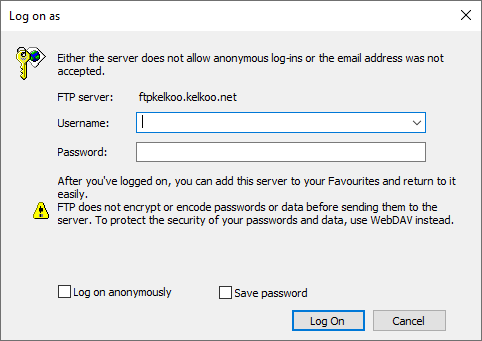
When prompted, enter the username and password into the prompt window. You can save the password and the login settings to help with future logins.
-
Depending on the home directory, you may be presented with 3 directories, if so you need to be in the 'pub' directory.
-
You can now simply drag and drop or copy/paste your feed into the file explorer window to upload.
-
The feed has now been uploaded successfully to your FTP account and you can inform your Kelkoo Group account manager or technical contact.
How to upload a feed using a FTP client
A FTP Client is a software designed to transfer files back-and-forth between a computer and a server over the Internet. There are many free FTP clients available to download such as FileZilla and they all work in a similar way.
-
Open FileZilla
-
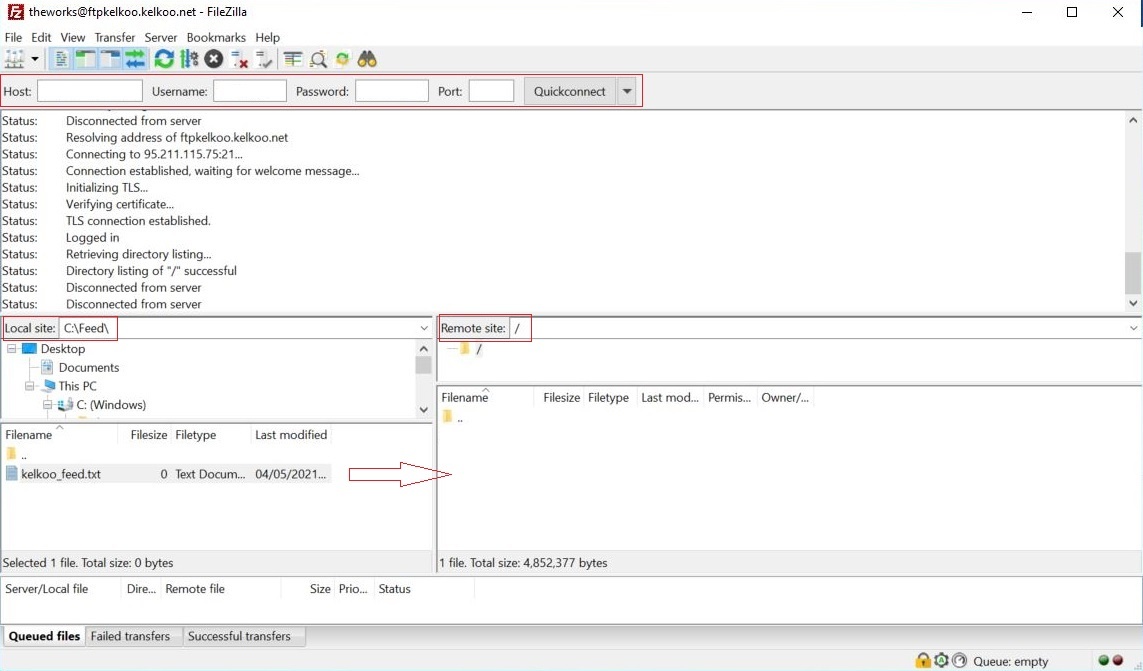
To connect to the Kelkoo Group FTP server, enter host,username, password
-
Host: ftpkelkoo.kelkoo.net
-
Username: provided by Kelkoo
-
Password: provided by Kelkoo
-
-
Click on "Quickconnect"

-
If you receive a "Unknown certificate" message, click "OK". If not, continue.
-
You should now be connected to your Kelkoo Group FTP account.
-
Under "Local site", locate your feed and simply drag it under the "Remote site" window to upload it.
-
Once the feed is uploaded, inform your Kelkoo Group account manager or technical contact.
Troubleshooting
I receive an error “530 Login authentication failed”
-
Ensure you are using the correct login details provided by Kelkoo Group. Note that passwords are case-sensitive.
-
Check your internet connection and that you are allowed to use port 21.
I receive an error “ECONNREFUSED – Connection refused by server”
-
You may receive this error if you are using incorrect FTP port number. The FTP port number that you should use is 21.
My feed has been uploaded but Kelkoo Group is unable to see it
-
Please ensure the feed has been uploaded into the "pub" directory.
-
When you connect to your FTP account and do not see any directories, this means you are already in the correct "pub" directory.
My feed is not updated on Kelkoo Group
-
Please ensure your file name remains the same each time your update the feed, otherwise our system will not be able to pick up the feed.
Frequently Asked Questions
How often should I update my feed?
To provide the best user experience, we recommend that you update your feed on regularly basis, ideally once a day or several times a day, depending on the frequency of changes in your store.
What is the maximum file size I can upload to my Kelkoo FTP account?
-
The Kelkoo Group FTP accounts are set up with a limit of 5GB.
-
If your feed is larger, please speak to your Kelkoo Group account manager.