
If your website uses Google Tag Manager (GTM), this is the recommended method for installing Kelkoo Sales Tracking (KST).
Video tutorial
You can also follow our video tutorial: How to Install KST using GTM
Step 1: Identify the Data Layer variables
Before configuring Kelkoo Sales Tracking, you need to identify the Data Layer variables used by your website for purchase events.
1.1 Start GTM Preview mode
From your Google Tag Manager workspace, click Preview to launch Tag Assistant.
1.2 Connect your website
In the Tag Assistant window, enter your website URL and click Connect.
Make sure the URL belongs to the website on which the relevant GTM container is installed.
1.3 Check the connection
Your website should open in a new browser tab.
In Tag Assistant, confirm that the connection status is displayed as Connected.
1.4 Complete a test purchase
On the website opened in the previous step, complete a test purchase.
1.5 Find the purchase event
Return to Tag Assistant.
In the event list on the left, locate the event corresponding to the order confirmation or thank-you page.
1.6 Identify the relevant ecommerce event
Select the event associated with the completed purchase.
The exact event name depends on your website's GTM and Enhanced Ecommerce implementation.
1.7 Identify the required values
Open the Data Layer tab and identify the following values:
-
Event name
-
Order ID
-
Order value
For example:
-
Event name:
purchase -
Order ID:
ecommerce.purchase.transaction_id -
Order value:
ecommerce.purchase.value
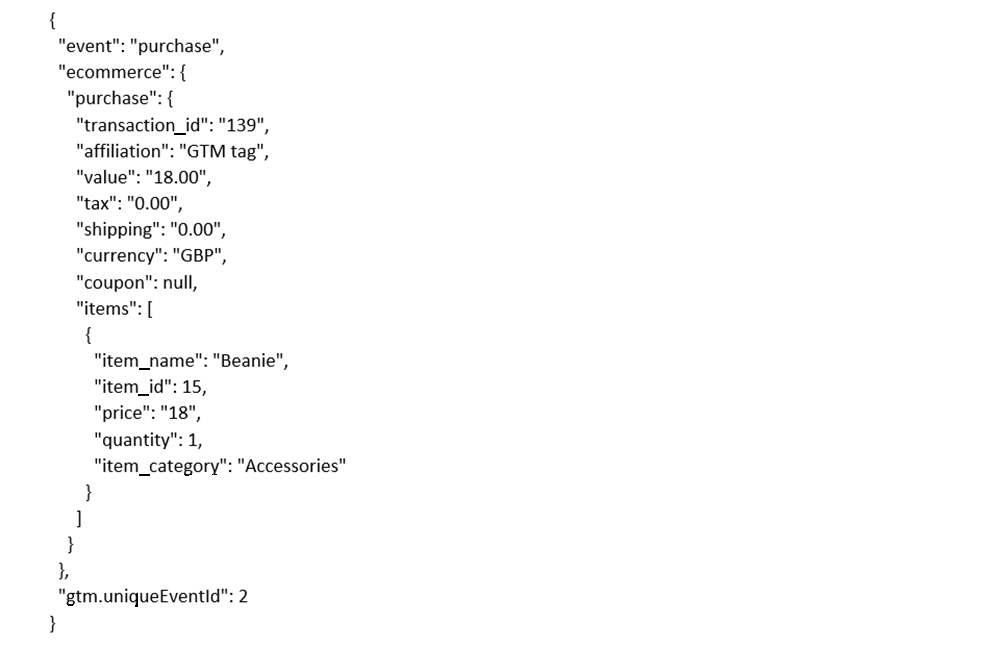
Important: Data Layer variables vary from one website to another. The examples above may therefore differ from those used on your website.
If you cannot find equivalent purchase information in the Data Layer, contact your ecommerce platform or implementation provider to check whether Enhanced Ecommerce data is being sent to GTM. Depending on your ecommerce platform, a plugin or extension may also be available to provide the required GTM ecommerce integration.
Step 2: Create GTM user-defined variables
You now need to create GTM variables for the Order ID and Order Value identified in Step 1.
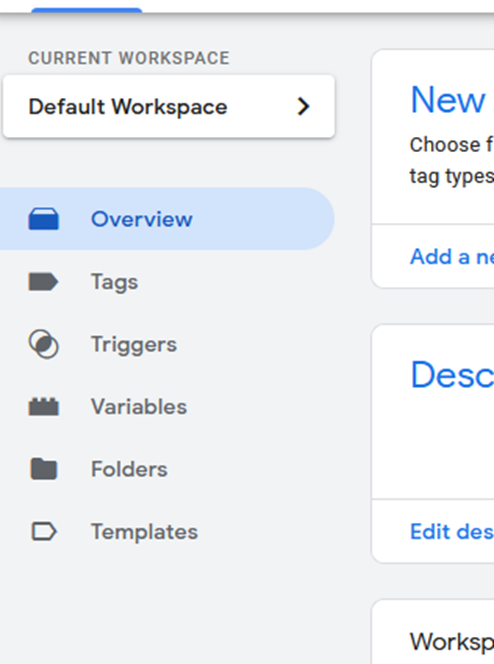
2.1 Open Variables
In your GTM workspace, select Variables from the left-hand menu.
2.2 Create a new variable
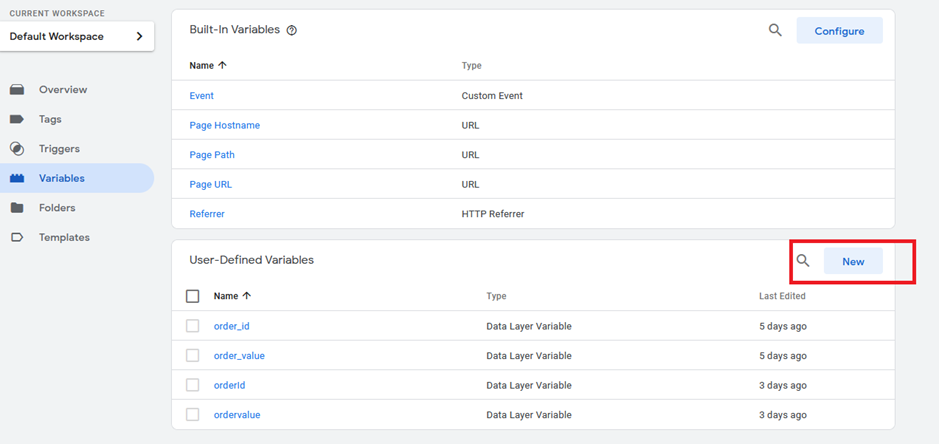
Under User-Defined Variables, click New.
2.3 Select the variable type
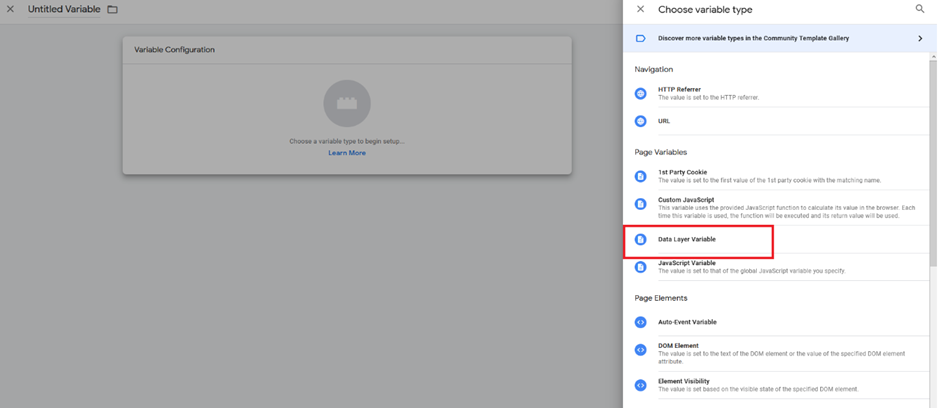
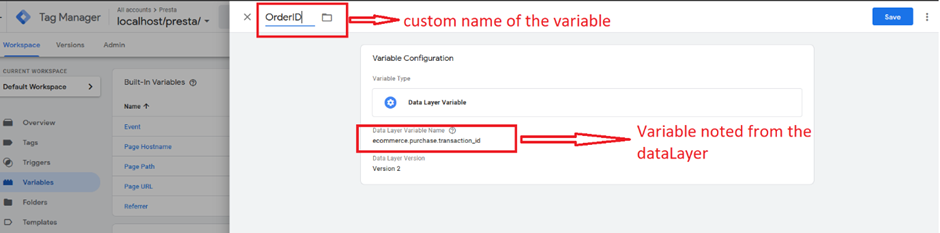
Click Variable Configuration, then select Data Layer Variable.
2.4 Create the Order ID variable
In Data Layer Variable Name, enter the Order ID variable identified in Step 1.7.
For example:
ecommerce.purchase.transaction_id
Give the variable a clear name, such as Order ID, and save it.
2.5 Create the Order Value variable
Repeat the previous step using the Order Value variable identified in Step 1.7.
For example:
ecommerce.purchase.value
Give the variable a clear name, such as Order Value, and save it.
Step 3: Create a trigger for the purchase event
Next, create a GTM trigger that fires when the purchase event identified in Step 1 occurs.
3.1 Open Triggers
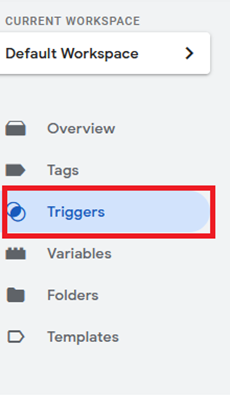
From the left-hand menu, select Triggers.
3.2 Create a new trigger
Click New, then click Trigger Configuration.

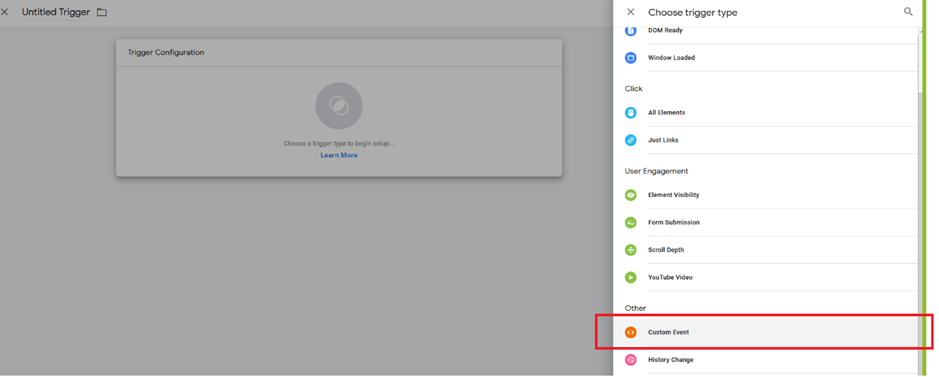
3.3 Select Custom Event
Choose Custom Event as the trigger type.
3.4 Configure the event
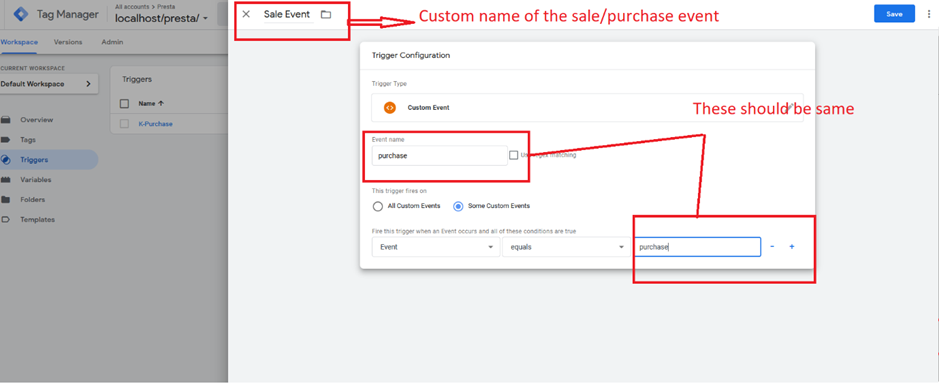
In Event name, enter the event name identified in Step 1.7.
For example:
purchase
Configure the trigger to fire on the appropriate purchase event, as shown in the screenshot below.
3.5 Save the trigger
Give the trigger a clear name, such as Purchase Event, and click Save.
Step 4: Install the Kelkoo Sales Tracking tag
4.1 Open the Template Gallery
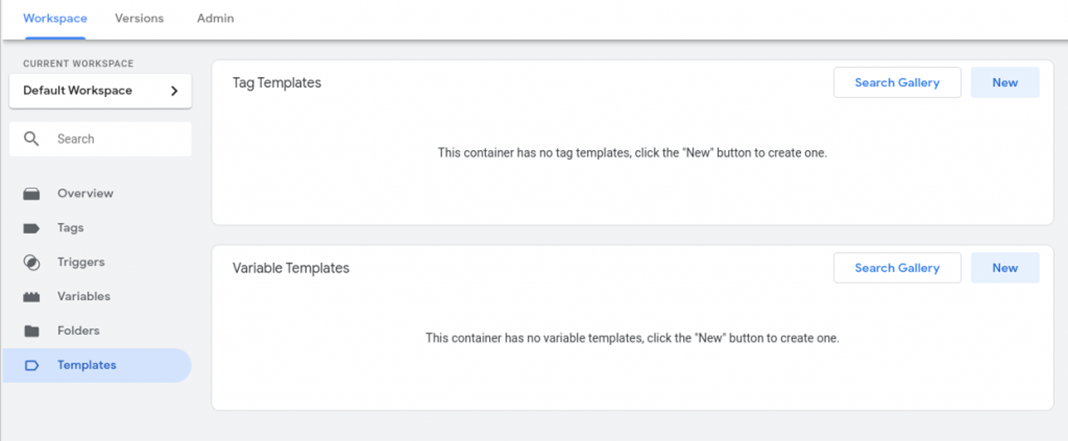
In GTM, select Templates.
Under Tag Templates, click Search Gallery.
4.2 Add the Kelkoo Group template
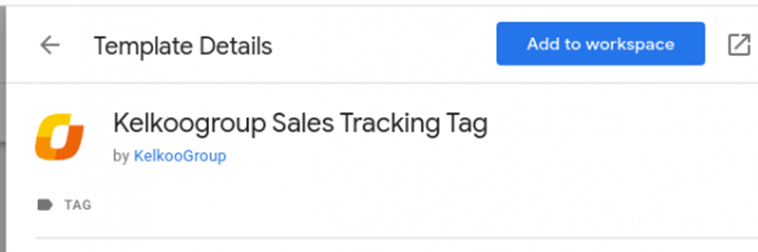
Search for Kelkoo Group Sales Tracking Tag and select it.
In the Template Details window, click Add to workspace.
4.3 Create the Kelkoo Sales Tracking tag
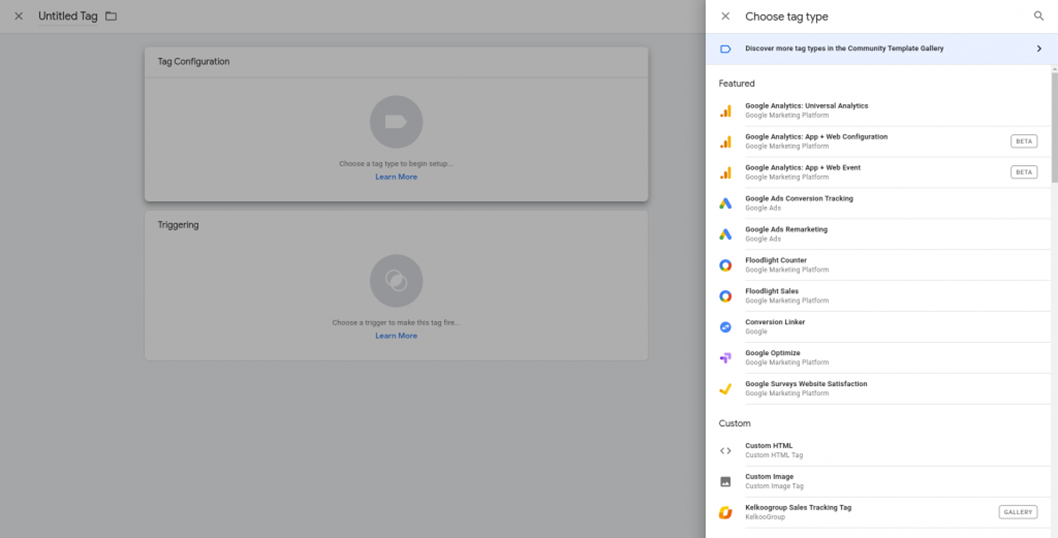
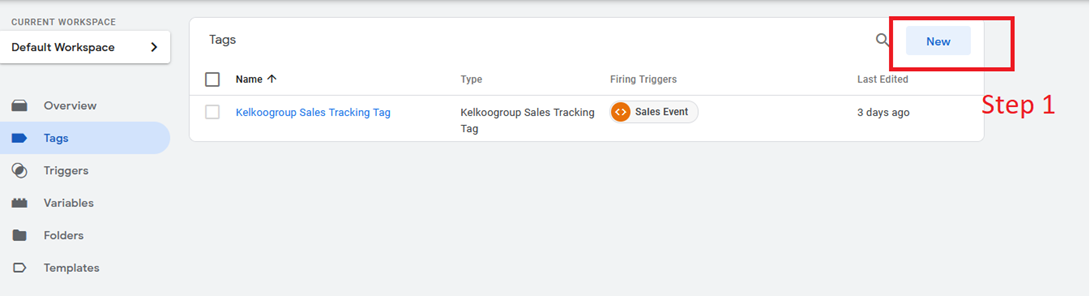
Go to Tags and create a new tag.
Under Tag Configuration, select the Kelkoo Group Sales Tracking Tag template.
4.4 Configure the tag
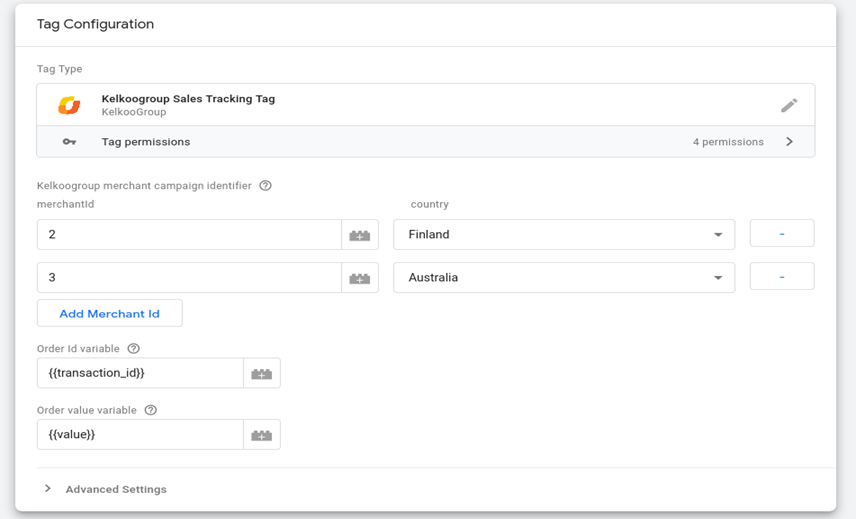
Configure the tag using:
-
Your Country Code
-
Your Merchant ID
-
The Order ID GTM variable created in Step 2
-
The Order Value GTM variable created in Step 2
Use the variable selector to choose the existing GTM variables created in Steps 2.4 and 2.5. Do not enter their names as plain text.
4.5 Add the purchase trigger
Under Triggering, select the custom purchase event trigger created in Step 3.
This ensures that the Kelkoo Sales Tracking tag fires when a purchase is completed.

4.6 Save the tag
Click Save.
Step 5: Install the Kelkoo Lead Tag
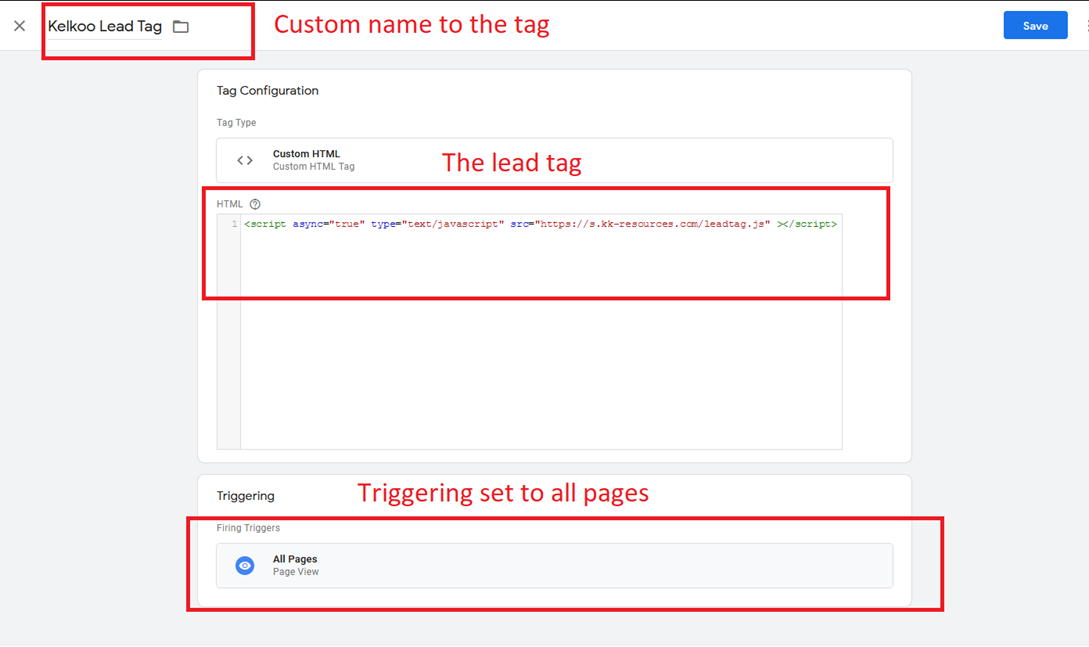
The Kelkoo Lead Tag must also be installed and configured to fire on every page.
5.1 Create the Lead Tag
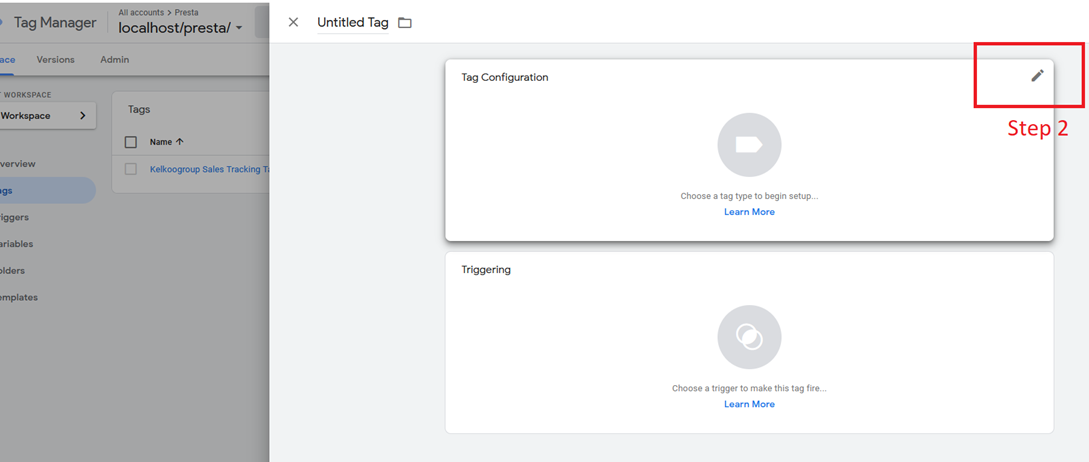
From the Tags menu, create a new Custom HTML tag.
Add the following code:
<script async="true" type="text/javascript" src="https://s.kk-resources.com/leadtag.js"></script>
Under Triggering, select All Pages.
5.2 Save and publish
Save the tag.
Once you have completed the configuration, Preview your GTM container to verify that the tags fire as expected.
When you are satisfied with the setup, publish your GTM changes to complete the Kelkoo Sales Tracking installation.
Test your setup
Once the installation is complete, we strongly recommend testing your implementation to make sure Kelkoo Sales Tracking is working correctly.
See Test your Kelkoo Sales Tracking setup for instructions.
Troubleshooting
If you experience any issues with your installation, see Troubleshooting GTM Integration before contacting our Support team.