
This is the documentation to install Kelkoo Sales tracking for Lightspeed C-series.
Before setting up your Kelkoo Sales Tracking Tag
Get your merchantId and associated Country Code
See How To get your merchantId and associated Country Code.
Installing Kelkoo Sales Tracking
-
Login to your Lightspeed Account.
-
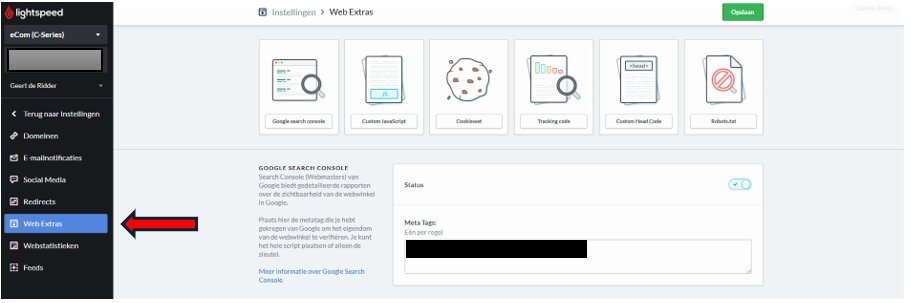
On the left side menu, click on ‘Web Extras’.
Lead Tag
-
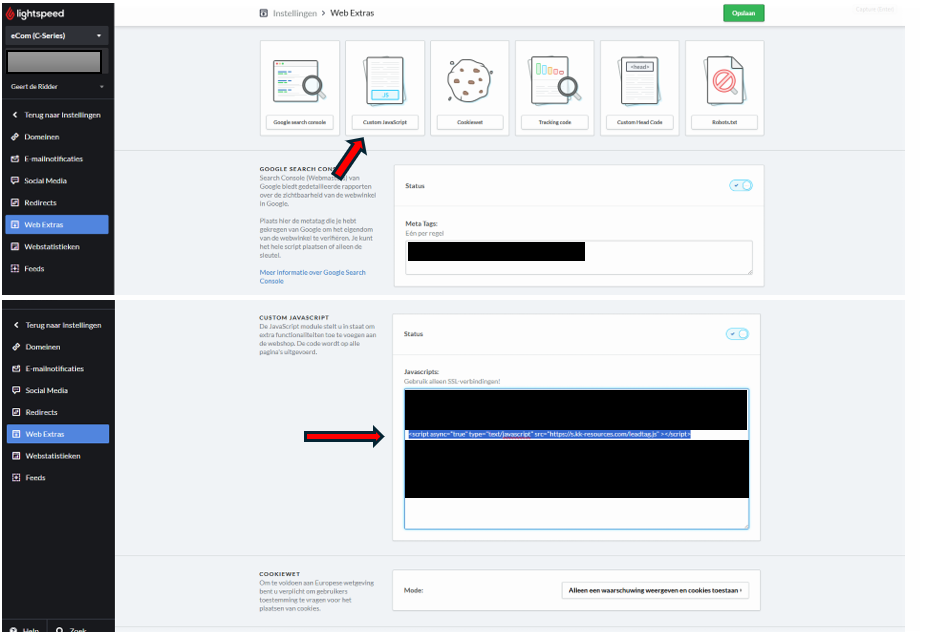
Click on Custom JavaScript and add the Lead Tag in the text area.
<script async="true" type="text/javascript" src="https://s.kk-resources.com/leadtag.js" ></script>
Conversion Tag
-
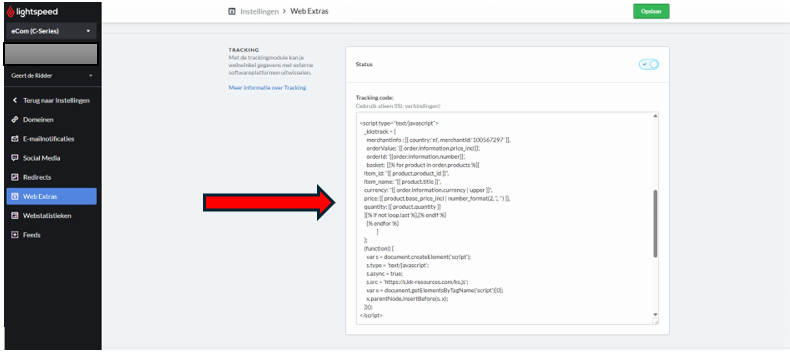
Copy the code below and replace the COUNTRY_CODE and MERCHANT_ID with the one associated to your campaign in the Conversion Tag.
<script type="text/javascript"> _kkstrack = { merchantInfo : [{ country:'COUNTRY_CODE', merchantId:'MERCHANT_ID' }], orderValue: '{{ order.information.price_incl}}', orderId: '{{order.information.number}}', basket: [{% for product in order.products %}{ item_id: "{{ product.product_id }}", item_name: "{{ product.title }}", currency: "{{ order.information.currency | upper }}", price: {{ product.base_price_incl | number_format(2, '.', '') }}, quantity: {{ product.quantity }} }{% if not loop.last %},{% endif %} {% endfor %} ] }; (function() { var s = document.createElement('script'); s.type = 'text/javascript'; s.async = true; s.src = 'https://s.kk-resources.com/ks.js'; var x = document.getElementsByTagName('script')[0]; x.parentNode.insertBefore(s, x); })(); </script> -
Click on Tracking Code and add the Conversion Tag.
-
Save the changes.
-
Perform a Test Order.