
Before setting up your Kelkoo Sales Tracking Tag
Get your merchantId and associated Country Code
See How To get your merchantId and associated Country Code
Clean any old version of Kelkoo Sales Tracking
-
In your code, remove any Kelkoo Sales tracking tag (search for leadtag.js and _kkstrack)
-
On your website backend, uninstall any Kelkoo Sales Tracking plugin you might have installed
Install Kelkoo Sales Tracking from Wordpress dashboard
-
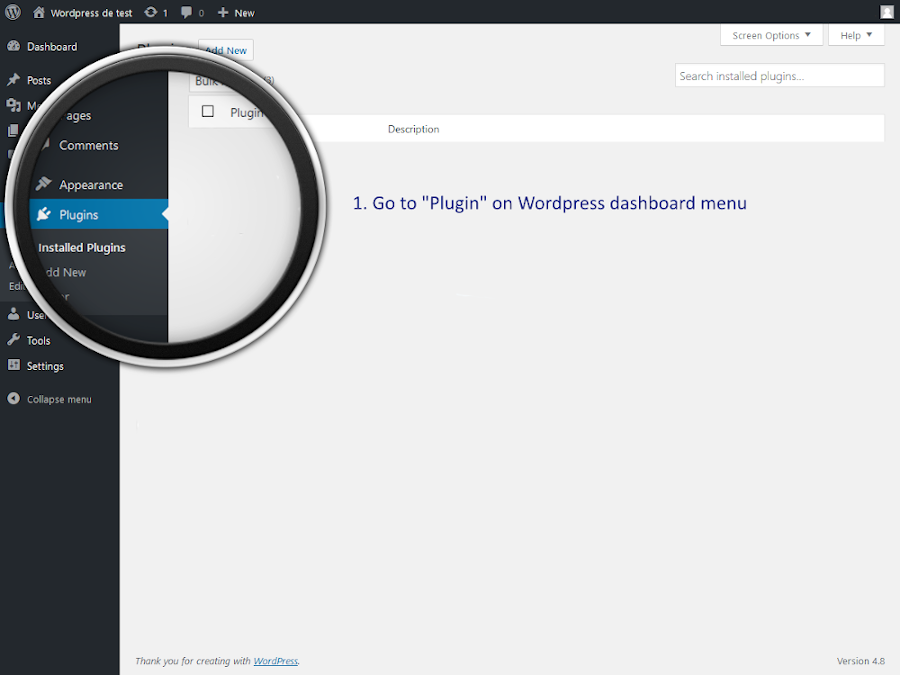
Log in to your WordPress dashboard, navigate to the Plugins menu
-
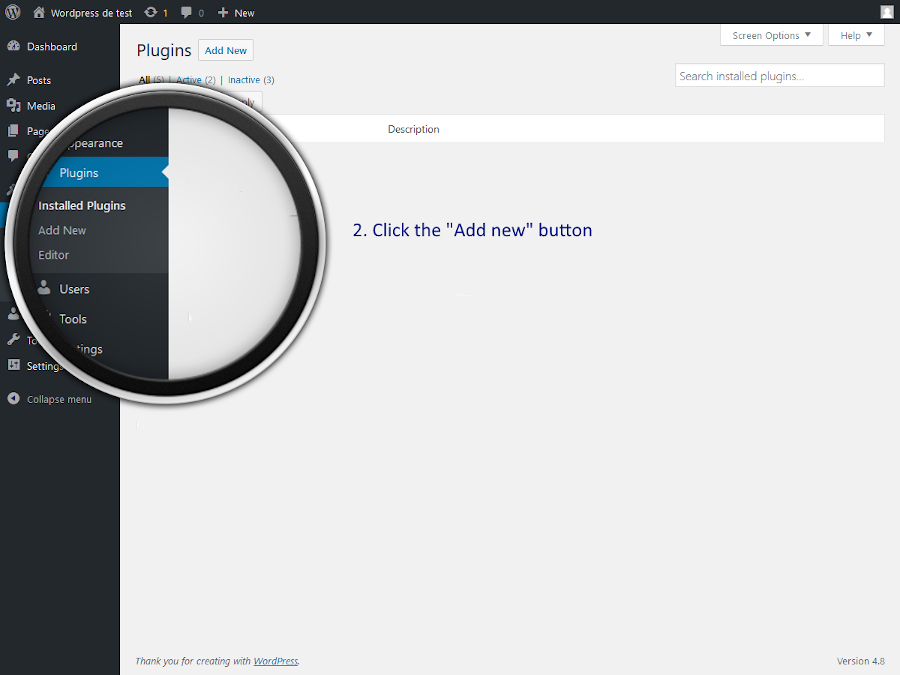
Click Add New.
-
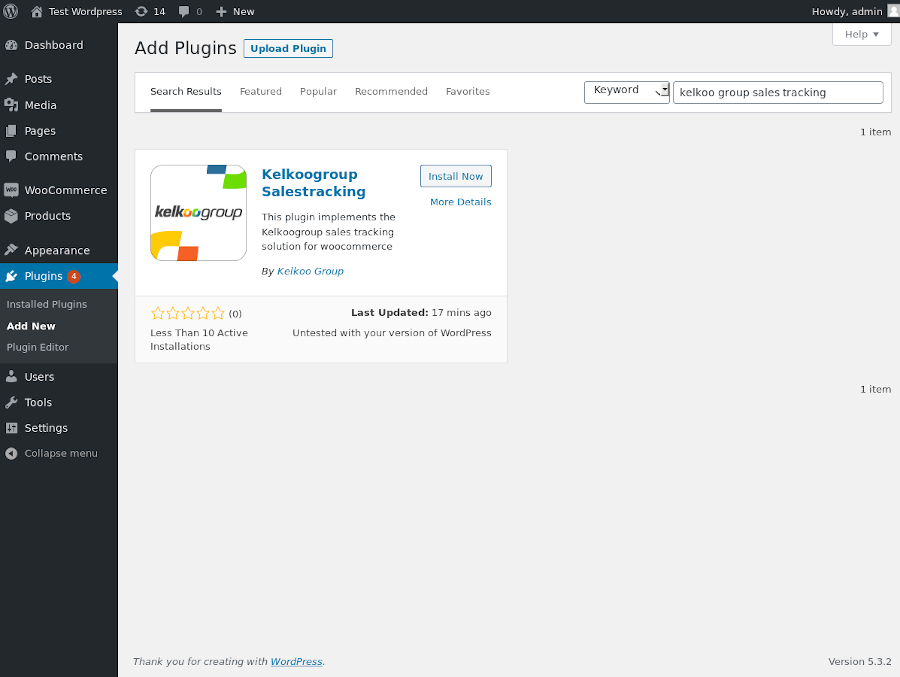
In the search field type Kelkoo Group sales tracking and click Search Plugins.
-
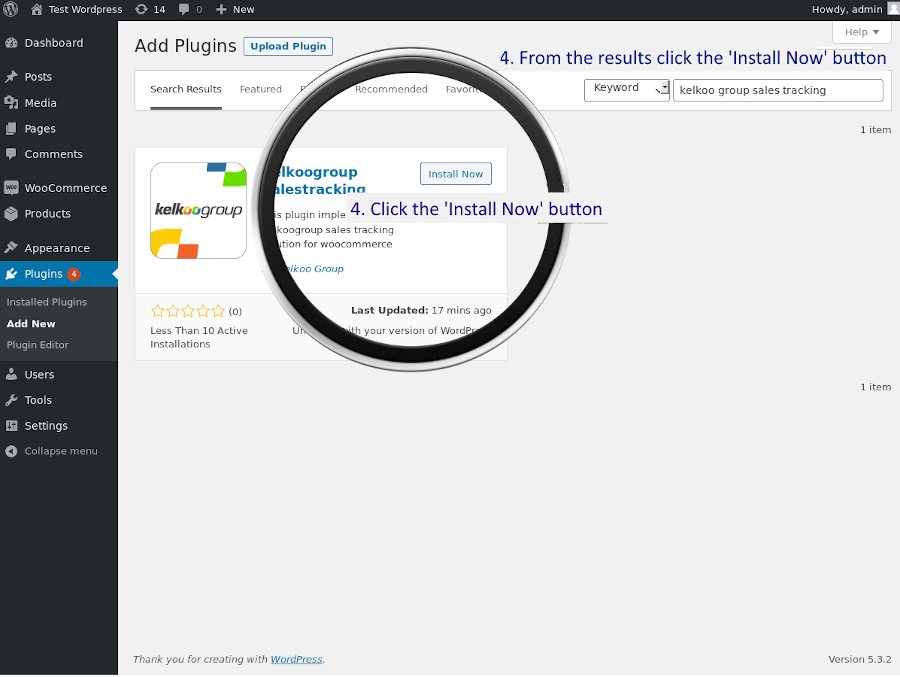
You can install it by simply clicking Install Now.
-
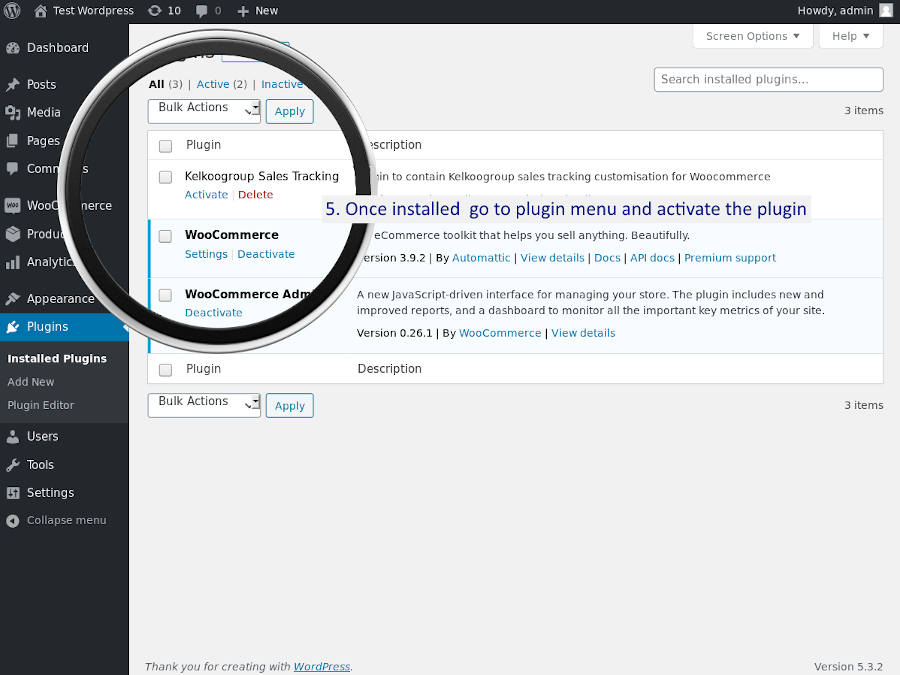
Once installed navigate to the Plugins menu again and activate the plugin
Install Kelkoo Sales Tracking from source
-
Download Kelkoo Group Salestracking plugin here: https://wordpress.org/plugins/kelkoogroup-sales-tracking/
-
Go to folder /wp-content/plugins and unzip the zip file
-
Log to your WordPress admin dashboard, go to Plugins, Click Activate
Configure the plugin
-
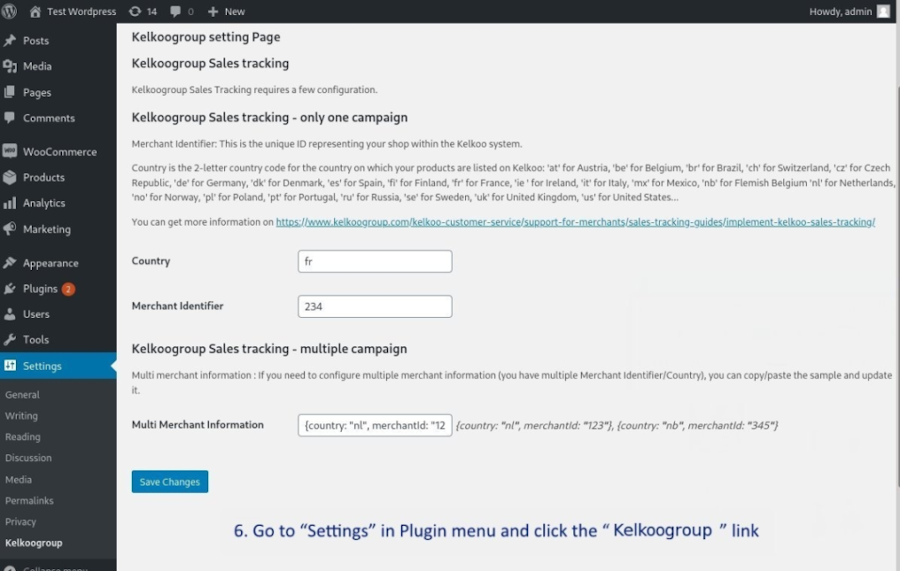
On Plugin page go to Settings and click on the Kelkoo Group link
-
Complete the form with information related to your Kelkoo Group subscription
-
Merchant Identifier: This is the unique ID representing your shop within the Kelkoo Group system.
-
Check How To get your merchantId and associated Country Code.
-
If you have multiple MerchantId please see below
-
-
Country is the 2-letter country code (lower case) for the country on which your products are listed on Kelkoo Group. Check Full list of Kelkoo Group country codes
If you have multiple merchantIds and countries
If you have several Kelkoo Group campaigns running for the same website (multiple MerchantId), you can setup all campaigns in the Kelkoo Group Sales tracking - multiple campaign.
The Multi Merchant Information variable needs to have the following structure :
merchantInfo : [
  {
    country:'fr',
    merchantId:'12941513'
  },
  {
    country:'uk',
    merchantId:'56789'
  }
]
Test your setup
Please check Test Installation