
If your website uses Google Tag Manager (GTM), this is the recommended method for installing Kelkoo Sales Tracking (KST).
Video tutorial
You can follow our video tutorial: How to Install KST using GTM
Before You Begin
Before installing the tag, make sure you have your Merchant ID. To find them, see How To get your merchantId
Running several campaigns or in several countries? If you run several campaigns with Kelkoo, you only need to install Kelkoo Sales Tracking once, using any of the Merchant IDs available. Kelkoo matches each sale to the right campaign regardless of which Merchant ID you send, so nothing is missed by using just one.
If you operate more than one website (a different domain), install Kelkoo Sales Tracking separately on each one, using a Merchant ID that belongs to that website. acme.com and acme.fr are the same website for Kelkoo; acme.com and safe.com are two different websites.
Remove Previous Installations
If your GTM container already includes an older version of Kelkoo Sales Tracking — for example a hand-built Custom HTML tag from a previous integration, rather than the official Kelkoo Group Sales Tracking Tag template — remove it before installing the new tags below. See Remove Previous Installations of Kelkoo Sales Tracking for what to look for and why this matters.
Step 1: Identify the Data Layer variables
Before configuring Kelkoo Sales Tracking, you need to identify the Data Layer variables used by your website for purchase events.
1.1 Start GTM Preview mode
From your Google Tag Manager workspace, click Preview to launch Tag Assistant.
1.2 Connect your website
In the Tag Assistant window, enter your website URL and click Connect.
Make sure the URL belongs to the website on which the relevant GTM container is installed.
1.3 Check the connection
Your website should open in a new browser tab. In Tag Assistant, confirm that the connection status is displayed as Connected.
1.4 Complete a test purchase
On the website opened in the previous step, complete a test purchase — ideally using a coupon/promo code, so you can confirm coupon detection later.
1.5 Find the purchase event
Return to Tag Assistant. In the event list on the left, locate the event corresponding to the order confirmation or thank-you page.
1.6 Identify the relevant ecommerce event
Select the event associated with the completed purchase, and open the Datalayer tab.
Check that the event pushes a flat ecommerce object with GA4-style keys, for example:
{
  "event": "purchase",
  "ecommerce": {
    "transaction_id": "12345",
    "value": 42.00,
    "currency": "EUR",
    "tax": 7.00,
    "shipping": 4.99,
    "coupon": "SUMMER10",
    "customer_type": "returning",
    "items": [ { "item_id": "SKU_123", "item_name": "...", "price": 21.0, "quantity": 2 } ]
  }
}
Note down the event name (purchase in this example) — that's all you need going forward.
Field names vary from one website to another. The examples above may therefore differ from those used on your website.
Good to know: Kelkoo Sales Tracking can automatically read most order fields from a standard GA4 or Universal Analytics purchase event already in your Data Layer — see How Kelkoo Sales Tracking automatically reads your Google Analytics data layer for full details and the exact fields covered.
Step 2: Create a trigger for the purchase event
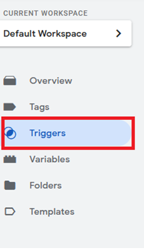
2.1 Open Triggers
From the left-hand menu, select Triggers.
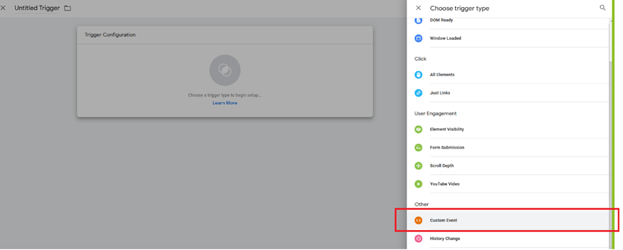
2.2 Create a new trigger
Click New, then click Trigger Configuration.

2.3 Select Custom Event
Choose Custom Event as the trigger type.
2.4 Configure the event
In Event name, enter the event name identified in Step 1.6 (for example, , purchase). Configure the trigger to fire on the appropriate purchase event, as shown in the screenshot below.
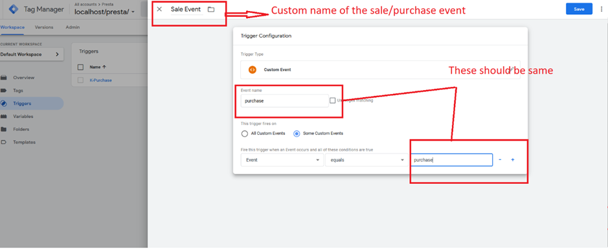
2.5 Save the trigger
Give the trigger a clear name, such as Purchase Event, and click Save.
Step 3: Install the Kelkoo Sales Tracking tag
3.1 Open the Template Gallery
In GTM, select Templates. Under Tag Templates, click Search Gallery.
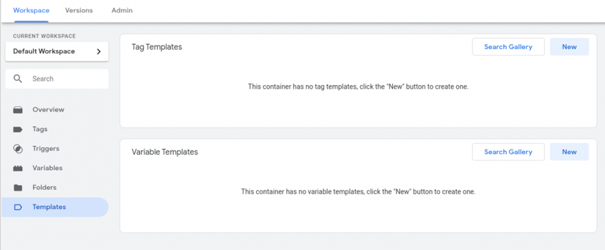
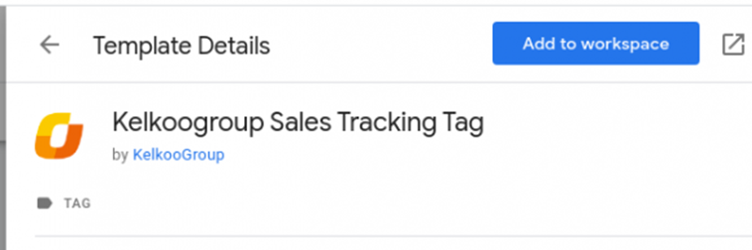
3.2 Add the Kelkoo Group template
Search for Kelkoo Group Sales Tracking Tag and select it. In the Template Details window, click Add to workspace.
3.3 Create the Kelkoo Sales Tracking tag
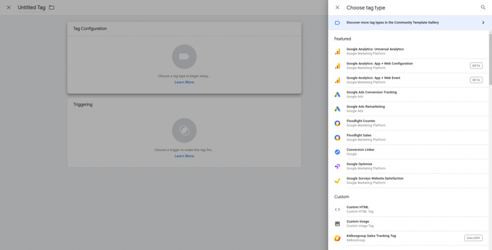
Go to Tags and create a new tag. Under Tag Configuration, select the Kelkoo Group Sales Tracking Tag template.
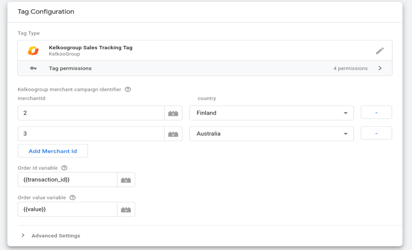
3.4 Configure the required fields
The table below lists every field the tag accepts, including Merchant ID — see How To get your merchantId if you don't have these yet.
Mandatory fields must reach Kelkoo one way or another for a sale to be tracked at all — either auto-detected from your Data Layer, or entered manually below if it isn't. Optional fields are never required, but they all are worth the extra effort.
For why each field matters, see Why these optional fields matter.
|
name |
type |
mandatory |
description |
example |
|---|---|---|---|---|
|
Merchant ID |
Long |
true |
Your Kelkoo Merchant ID — always entered manually, never auto-detected. See How To get your merchantId and associated Country Code. |
100503562 |
|
Order ID |
String |
true |
Leave empty if your Data Layer follows the standard GA4 or UA format identified in Step 1. |
FAPC-MZL8-QFNY |
|
Order Value |
Double |
true |
Leave empty if your Data Layer follows the standard GA4 or UA format identified in Step 1. Note: this defaults to GA4's net value (excluding tax/shipping). |
37.72 |
|
Basket / Items |
Array |
false |
Leave empty if your Data Layer already exposes |
|
|
Coupon Code |
String |
false |
Leave empty if your standard GA4/UA Data Layer format already provides it ( |
SUMMER10 |
|
Currency |
String |
false |
Leave empty if your standard GA4/UA Data Layer format already provides it ( |
EUR |
|
VAT Amount |
Double |
false |
Leave empty if your standard GA4/UA Data Layer format already provides it ( |
20.50 |
|
Shipping Cost |
Double |
false |
Leave empty if your standard GA4/UA Data Layer format already provides it ( |
4.99 |
|
Discount Amount |
Double |
false |
Leave empty if your standard GA4/UA Data Layer format already provides it. |
7.50 |
|
Affiliation |
String |
false |
Leave empty if your standard GA4/UA Data Layer format already provides it ( |
Acme Online Store |
|
Payment Status |
String |
false |
No standard Data Layer field to fall back on. Leave empty if you don't have pay-later payment options — otherwise requires a Custom Variable, see Advanced below. |
paid |
|
Customer Lifetime Value |
Double |
false |
No standard Data Layer field to fall back on. Leave empty if you don't have a way to estimate this — otherwise requires a Custom Variable, see Advanced below. |
1250.50 |
|
Returning Customer |
Boolean |
false |
Leave empty if your Data Layer already exposes |
true |
Leave every field blank — except Merchant ID, which are always entered manually — if Step 1 showed a standard GA4 or UA Data Layer; Kelkoo fills the rest in automatically. Only fill in an optional field if you need to point to a non-standard Data Layer key, or override a value Kelkoo would otherwise auto-detect.
3.5 Add optional fields
We strongly encourage you to populate all optional fields, since they directly improve how we optimise your campaigns. If you use a standard GA4 datalayer, most of the fields are populated automatically.
However the following three need manual setup - see Creating Custom GTM Data Layer Variables for Non-Standard Datalayer Formats
-
Returning Customer: if your Data Layer doesn't expose
ecommerce.customer_type, and you have another way to determine this (your own customer database, a cookie, a logged-in state), create a Custom JavaScript Variable in GTM that returns"true"/"false"and map it here -
Payment Status: there's no standard Data Layer field for this, so it always requires a Custom Variable
-
Customer Lifetime Value: there's no standard Data Layer field for this, so it always requires a Custom Variable
3.6 Add the purchase trigger
Under Triggering, select the custom purchase event trigger created in Step 2.

3.7 Save the tag
Click Save.
Step 4: Install the Kelkoo Lead Tag
The Kelkoo Lead Tag must also be installed and configured to fire on every page.
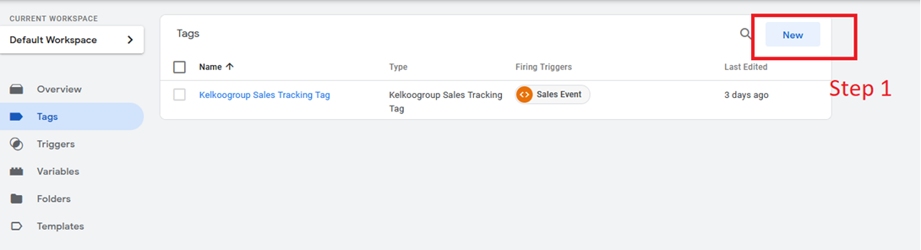
4.1 Create the Lead Tag
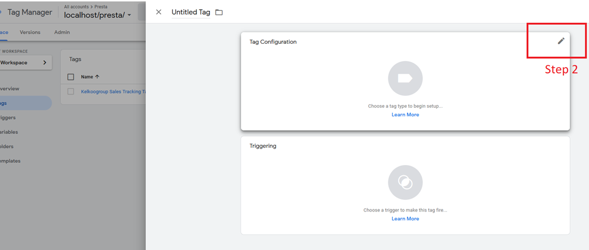
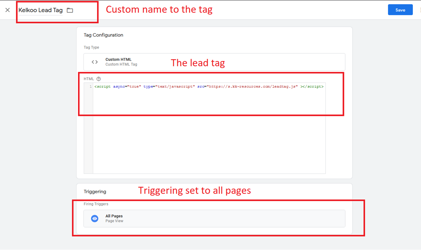
From the Tags menu, create a new Custom HTML tag.
Add the following code:
<script async="true" type="text/javascript" src="https://s.kk-resources.com/leadtag.js"></script>
Under Triggering, select All Pages.
4.2 Save and publish
Save the tag. Once you have completed the configuration, Preview your GTM container to verify that the tags fire as expected. When you are satisfied with the setup, publish your GTM changes to complete the Kelkoo Sales Tracking installation.
Step 5. Configure your Consent Management Platform (CMP)
Kelkoo Sales Tracking relies on two tags with different consent requirements — the Lead Tag must be gated behind user consent, while the Kelkoo Sales Tracking tag should not be blocked by a missing consent signal, or your sales will be under-reported.
See Configuring Consent Management (CMP) for full setup and verification instructions.
Step 6. Test your setup
Once the installation is complete, we strongly recommend testing your implementation to make sure Kelkoo Sales Tracking is working correctly.
See Test your Kelkoo Sales Tracking setup for instructions.
Troubleshooting
If you experience any issues with your installation, see Troubleshooting GTM Integration before contacting our Support team.