
Only needed if your Data Layer doesn't follow the standard GA4 or Universal Analytics format identified in Step 1, or if you want to override a value Kelkoo would otherwise auto-detect.
How to create a Data Layer Variable
You can create a Data Layer Variable for any field in the table above that isn't already covered by the standard GA4/UA format.
A.1 Identify the correct path
Repeat Step 1 above on the field you need, and note down its exact path in the Data Layer. For example, if your site pushes order value under a custom key such as checkout.grandTotal.
A.2 Open Variables
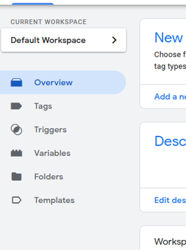
In your GTM workspace, select Variables from the left-hand menu.
A.3 Create a new variable
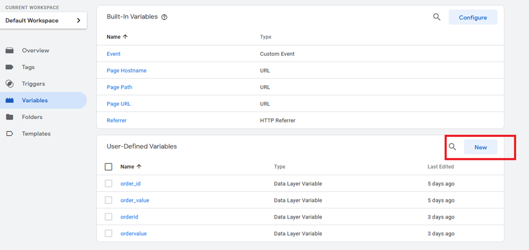
Under User-Defined Variables, click New.
A.4 Select the variable type
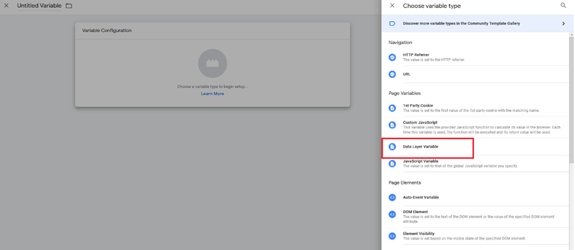
Click Variable Configuration, then select Data Layer Variable.
A.5 Set the Data Layer Variable Name
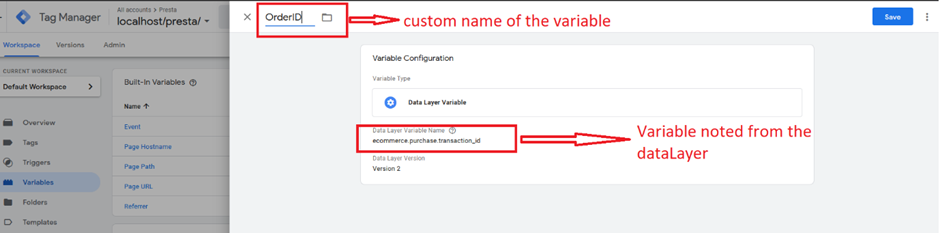
Enter the path identified in A.1 (for example, checkout.grandTotal). Give the variable a clear name, such as Order Value (gross), and save it.
A.6 Map it on the Kelkoo tag
Go back to the Kelkoo Sales Tracking tag configuration (Step 3.4) and fill in the corresponding field, using the variable picker to select the variable you just created. Do not enter its name as plain text.
Notes on specific fields:
-
Returning Customer has no Data Layer standard to fall back on at all (neither GA4 nor UA). If you can't add
ecommerce.customer_typeto yourpurchaseevent, use a Custom JavaScript Variable instead of a Data Layer Variable — see the note under Step 3.4. -
Basket / Items expects a variable resolving to an array of items, not a single value. Use this if your item objects don't match the standard
item_id/item_name/price/quantity(or UAid/name/price/quantity) shape. See Add Basket Information to Kelkoo Sales Tracking for the full list of accepted field names and how to match your offer feed's product identifier.
-
Payment Status and Customer Lifetime Value have no standard Data Layer field to fall back on at all, in either GA4 or UA. If you want to populate them, always create a Custom JavaScript Variable (reading from your payment gateway status, order/customer database, etc.) rather than a Data Layer Variable, and map it the same way in Step 3.4.
-
No Data Layer at all: if your site doesn't push ecommerce data to
window.dataLayerunder any format, every field you need will require its own Custom JavaScript Variable reading directly from the confirmation page instead of a Data Layer Variable.