
This plugin lets you generate a product feed on WordPress. Follow the steps below to install and configure it, then share your feed URL with your Kelkoo Account Manager.
How to Install & Set Up the Product Feed Plugin
Step 1: Log in to WordPress and navigate to Plugins
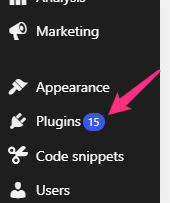
Log in to your WordPress account. In the left sidebar, click Plugins → Add Plugin.
Step 2: Search for and install the Adtribe plugin
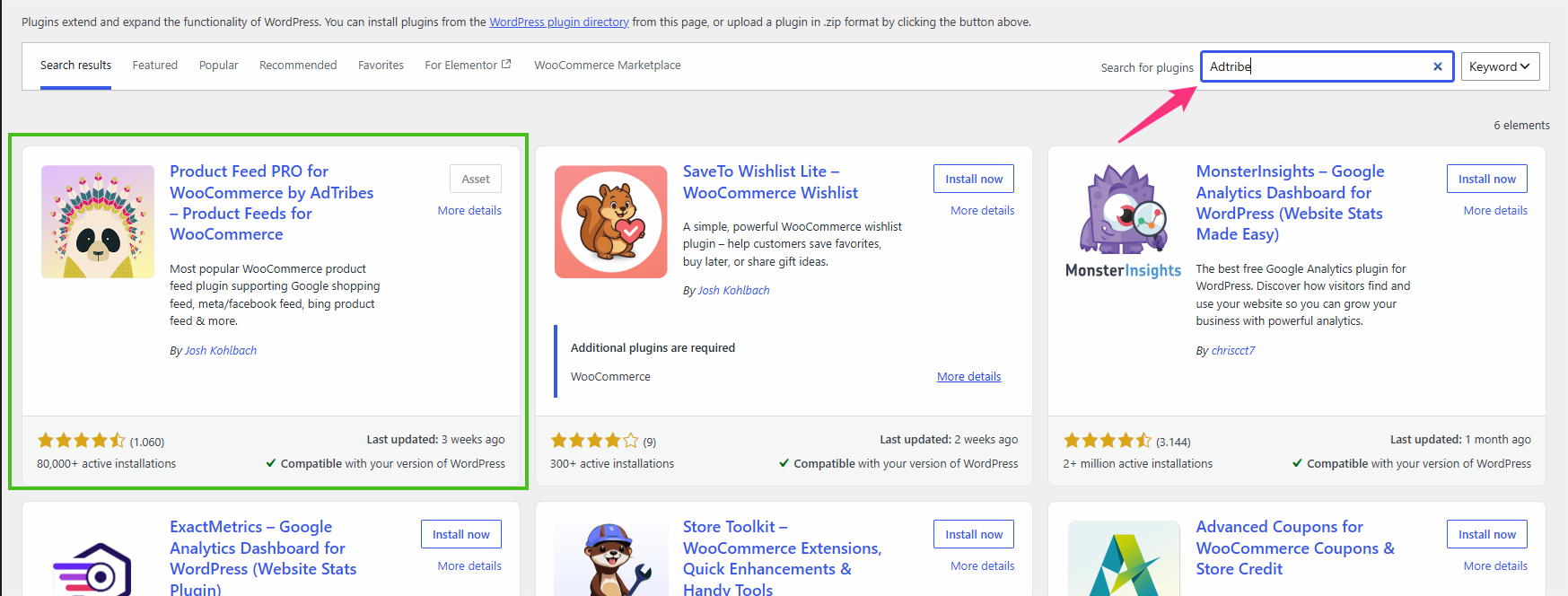
Search for Adtribe and install the plugin named "Product Feed Pro for WooCommerce by Adtribe".
Step 3: Create a new feed
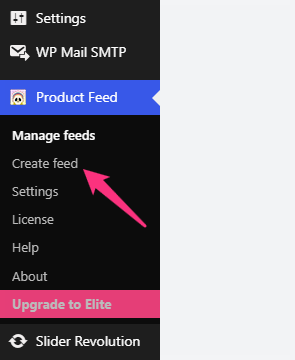
Once the plugin is installed, look for Product Feed in the left sidebar and click Create Feed.
Step 4: Configure the General section
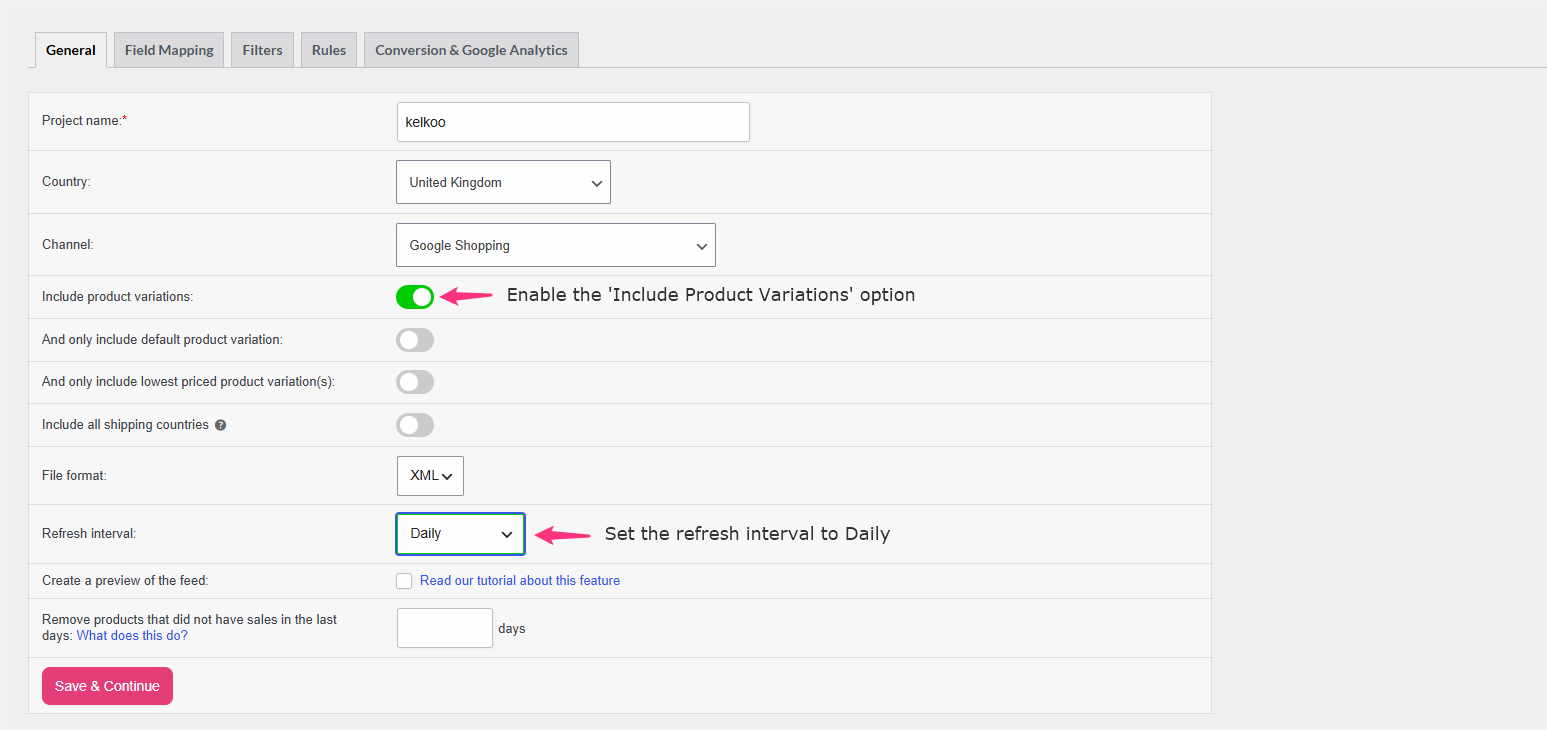
In the General section, name the project whatever you like and select the country for your feed. Make sure the Include Product Variations option is enabled and the Refresh interval is set to Daily.
Click Save and Continue.
Step 5: Review the field mapping
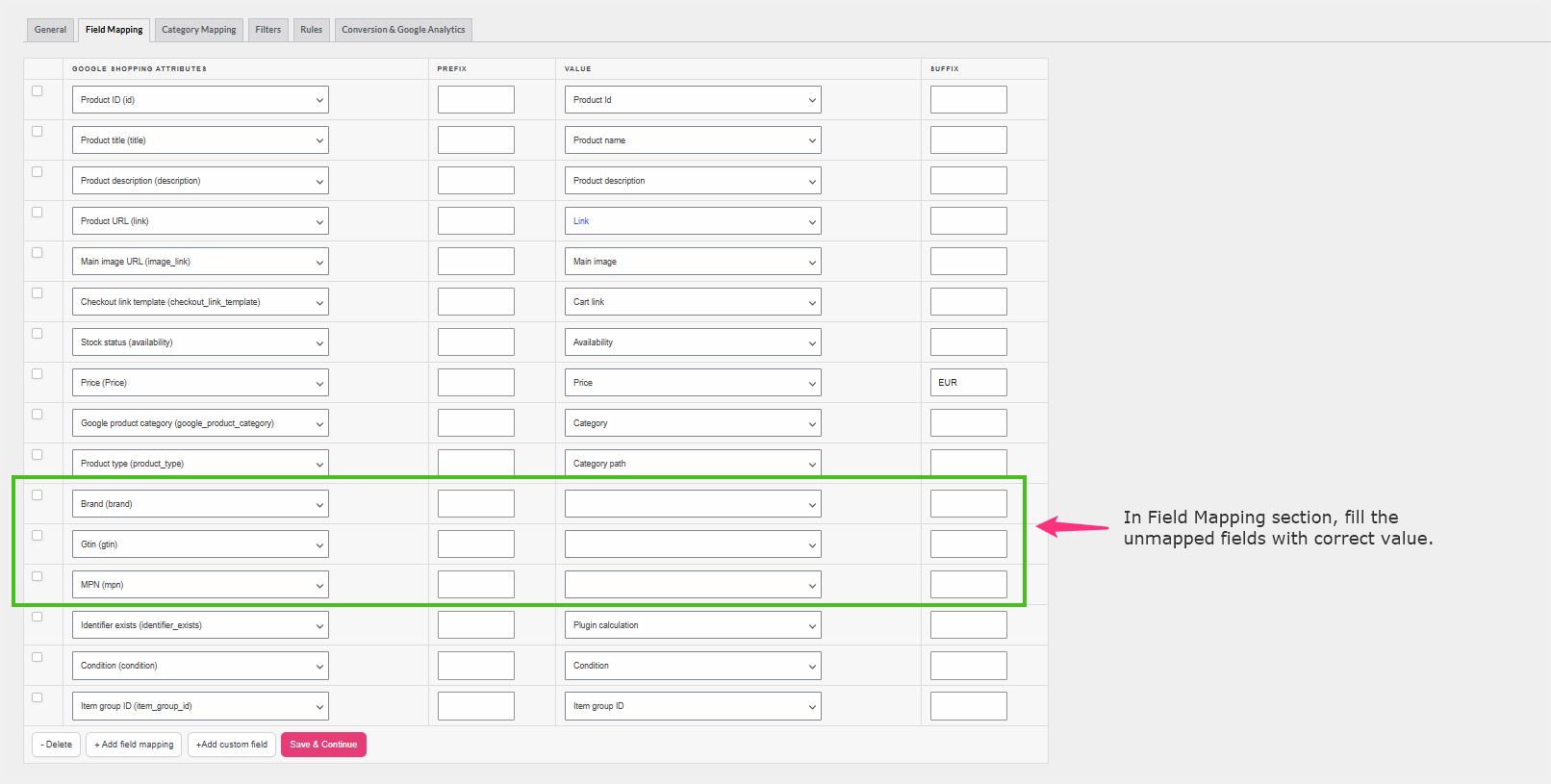
In the Field Mapping section, most fields should be mapped automatically. Fill in the correct values for any unmapped fields, then click Save and Continue.
Step 6: Skip to Conversion & Google Analytics
You can skip all the other sections and go directly to Conversion & Google Analytics.
Step 7: Set UTM parameters and generate the feed
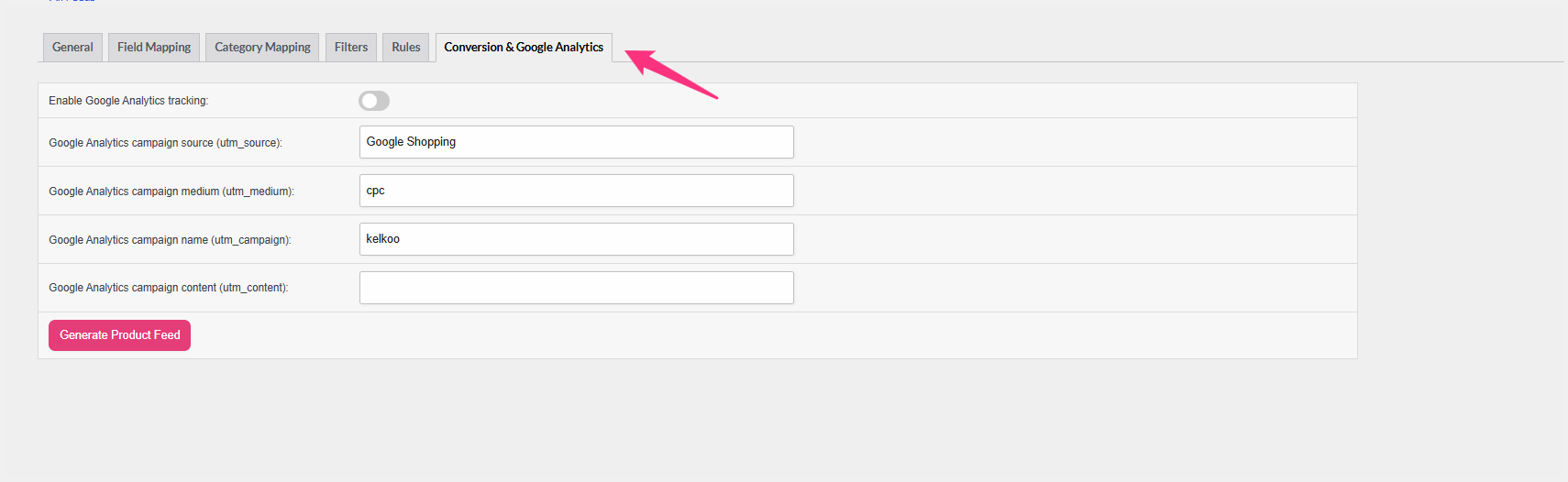
In Conversion & Google Analytics, add any specific UTM parameters you need. If you don't need any, disable the UTM parameter option. Then click Generate Product Feed.
Step 8: Copy and share your feed URL
The feed takes around 5–10 minutes to generate. Once it's ready, copy the Feed URL and share it with your Kelkoo Account Manager.
