
How to Install & Set Up the Product Feed Plugin
Follow these steps to install the free Kelkoo Product Feed plugin on your PrestaShop store and share your feed URL with your Account Manager.
Step 1: Download the ZIP file
Click the link below to download the plugin. Save the productfeed_v1.5.5.zip file to your computer — do not unzip it.
Step 2: Log in to PrestaShop and navigate to Modules
In the left sidebar, navigate to Personalize → Modules → Modules and Services.
Step 3: Click "Upload a Module" in the top-right corner
On the Module Manager page, click the Upload a Module button in the top-right corner.

Step 4: A pop-up window will appear — drag and drop the ZIP file
An upload dialog will open. Drag the productfeed_v1.5.5.zip file from your computer into the dashed area, or click "select the file" to browse. PrestaShop will install the module automatically.
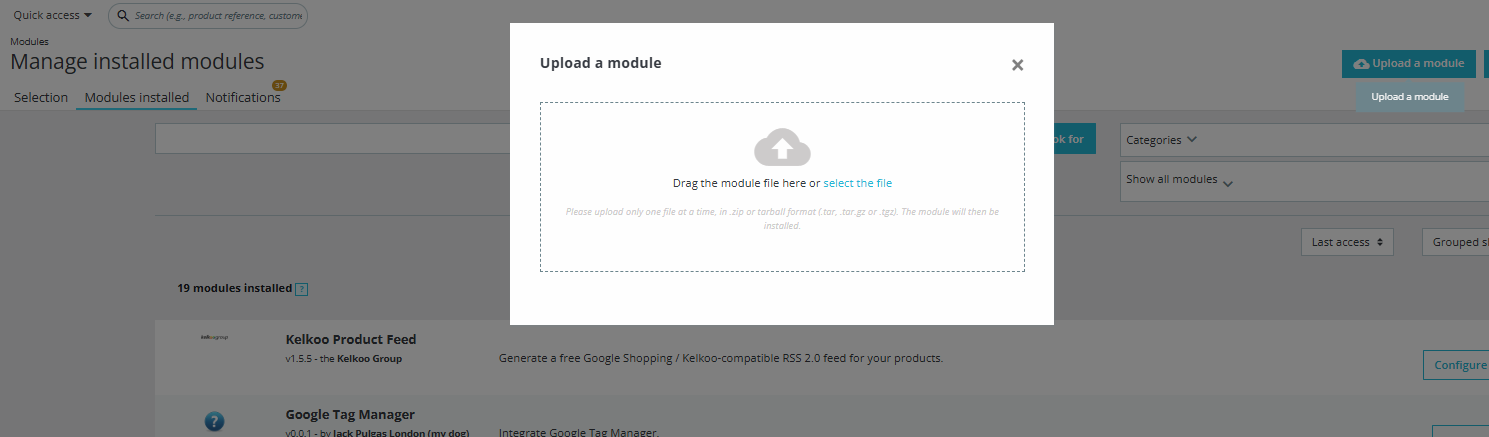
Step 5: Find the Kelkoo Product Feed and click "Configure"
After installation, find Kelkoo Product Feed in the installed modules list and click the Configure button on the right.

Step 6: Generate the feed and copy your feed URL
On the configuration page, click Refresh Feed Now to generate the feed, then click Copy URL to copy your unique feed URL. Send this URL to your Kelkoo Account Manager.
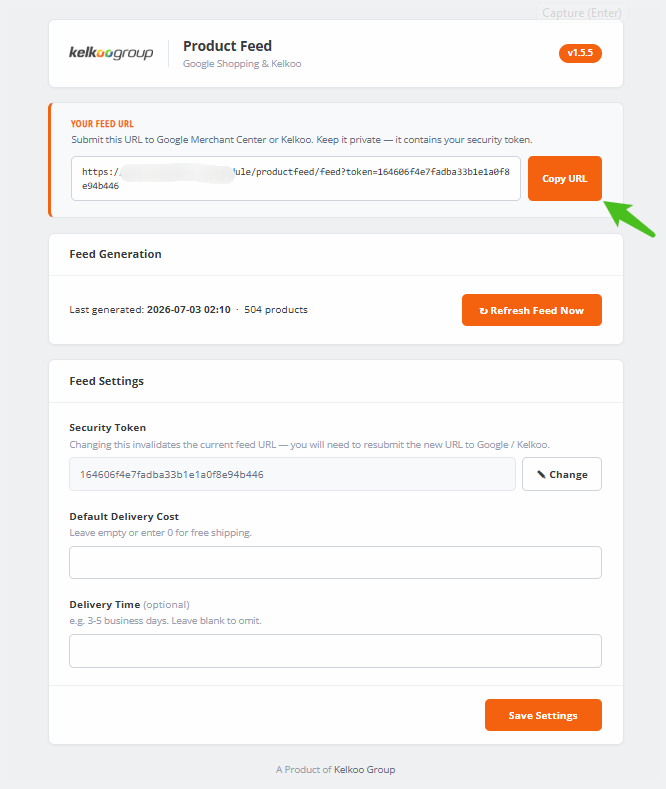
Note: The feed updates automatically every 24 hours. Click "Refresh Feed Now" only when you need an immediate update — for example, after adding new products or changing prices.